
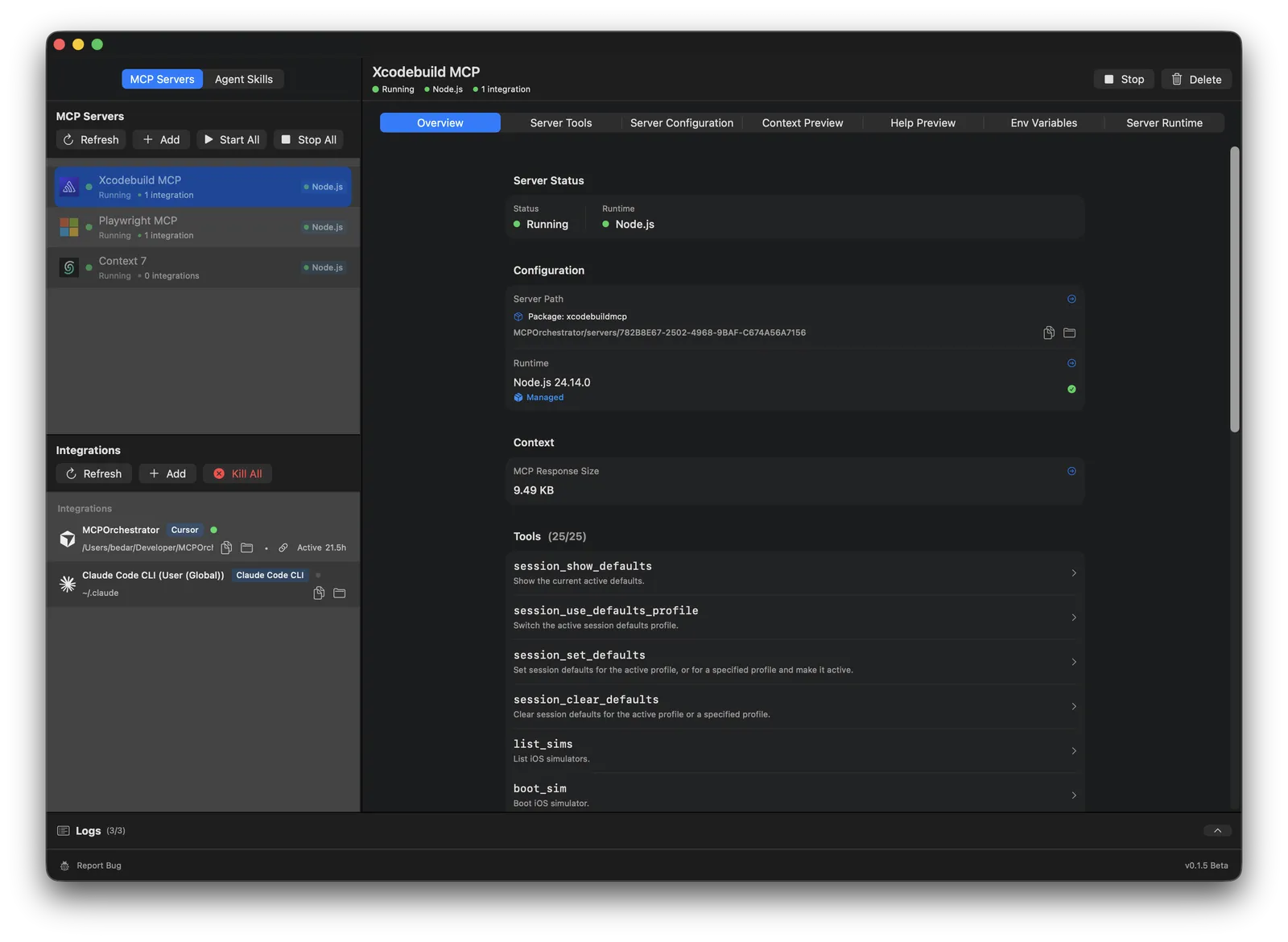
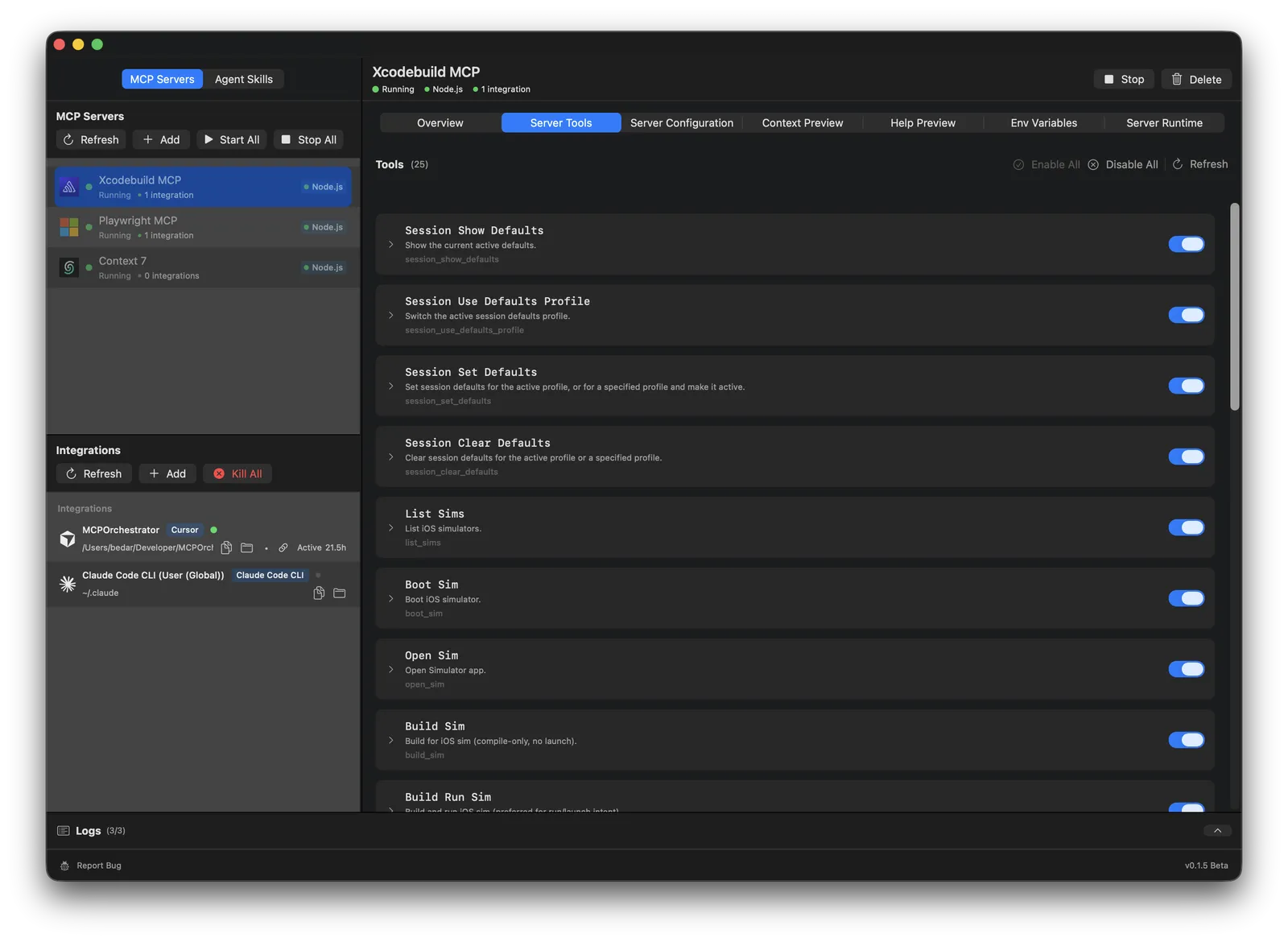
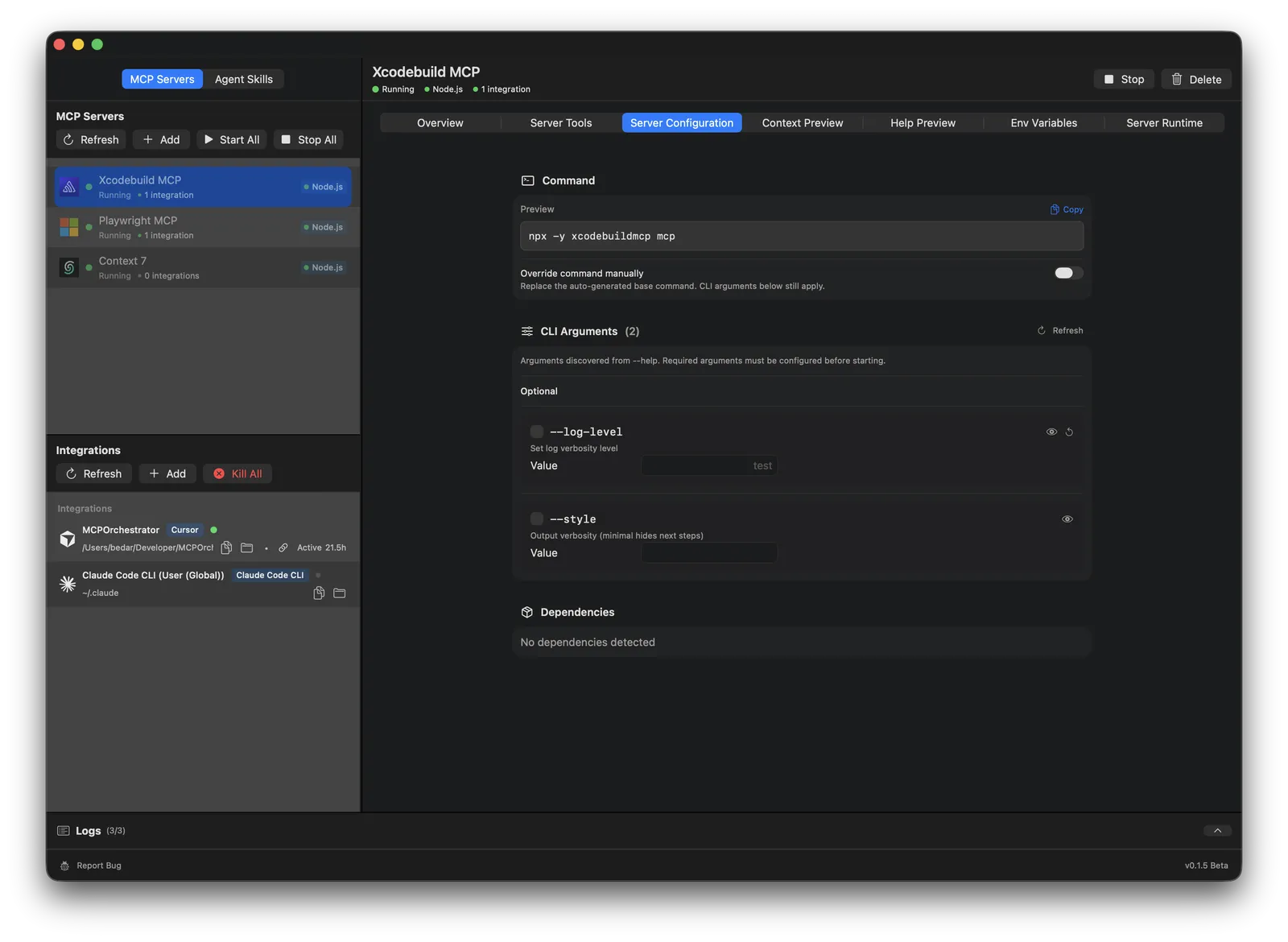
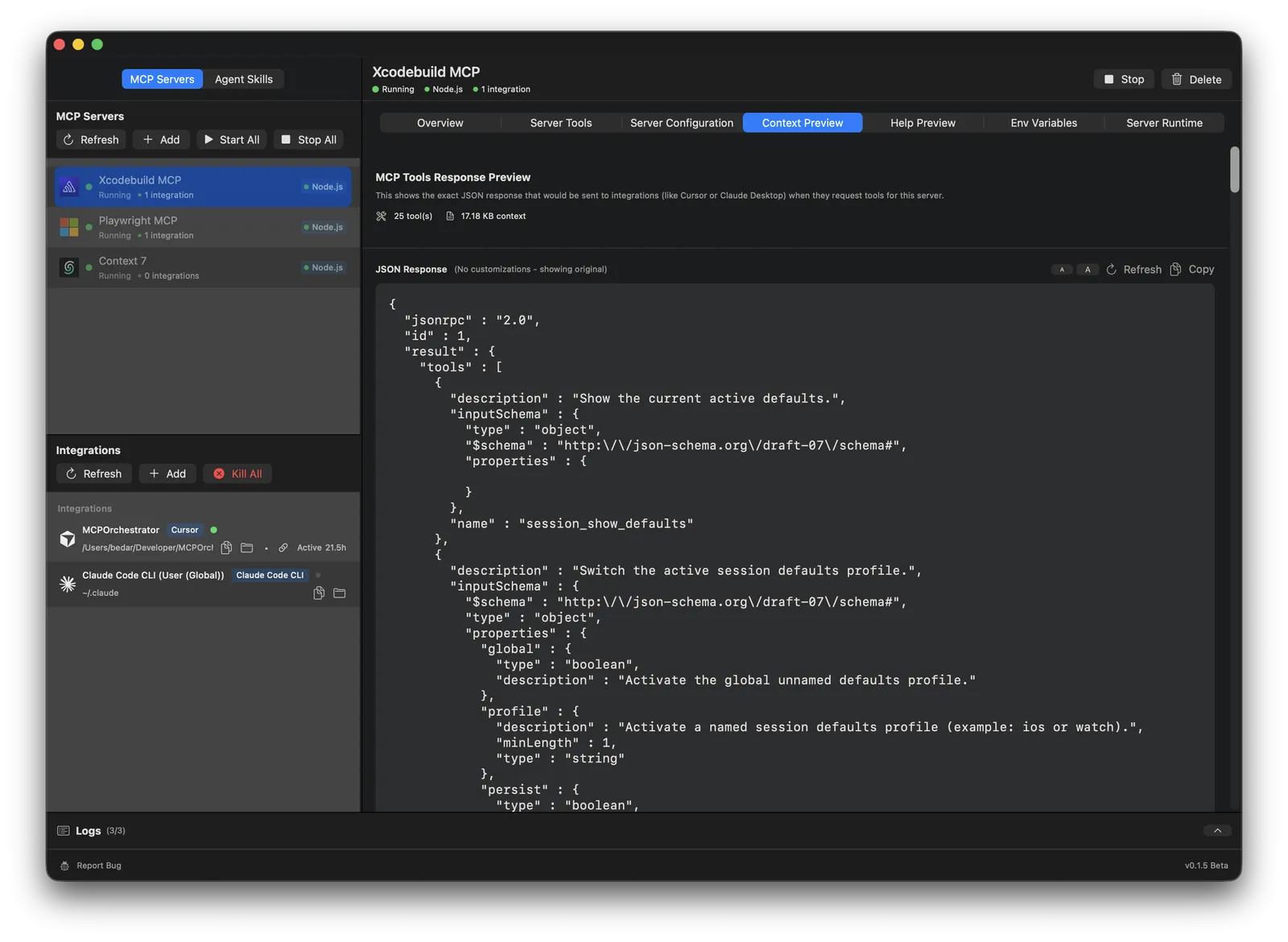
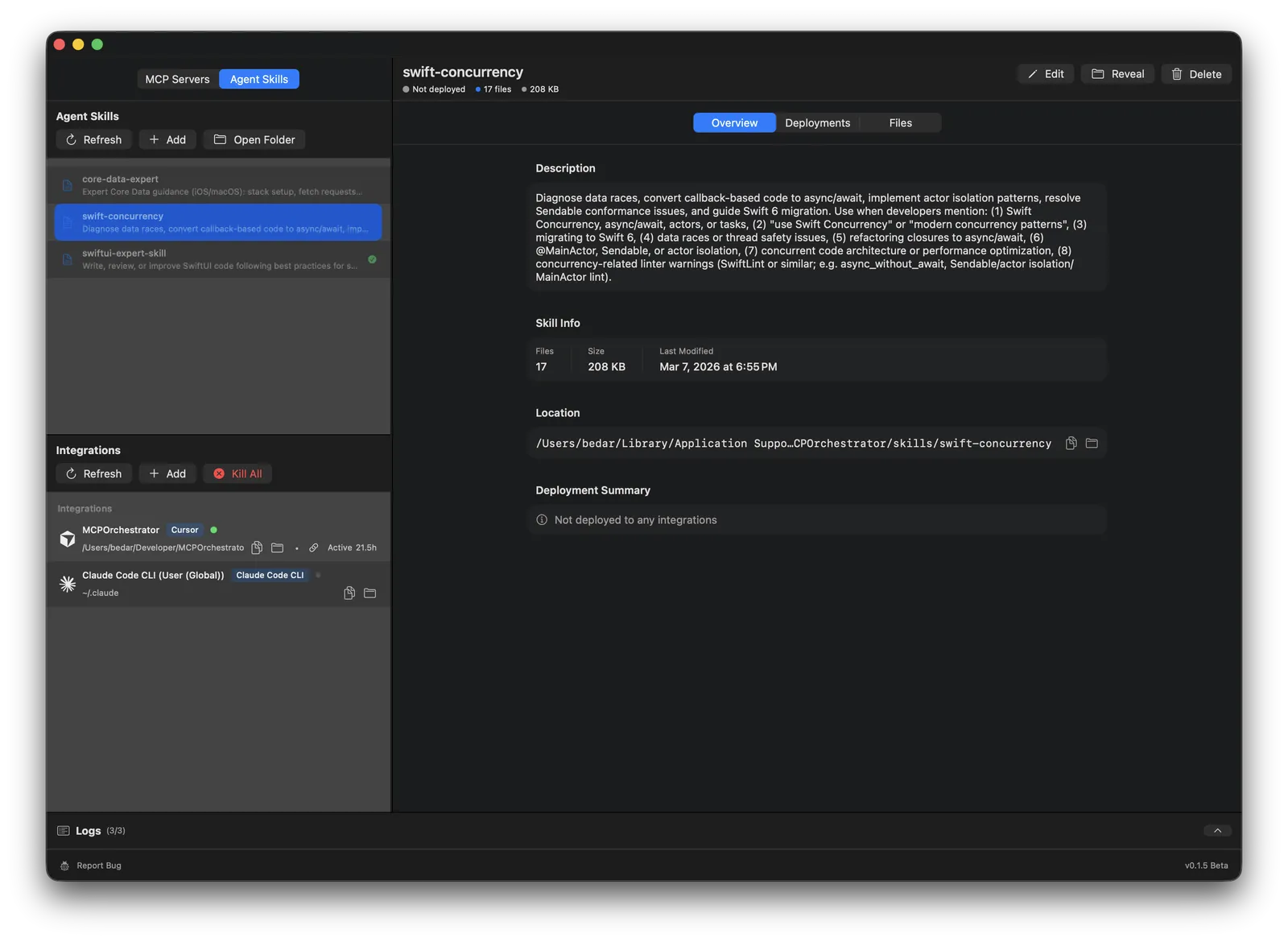
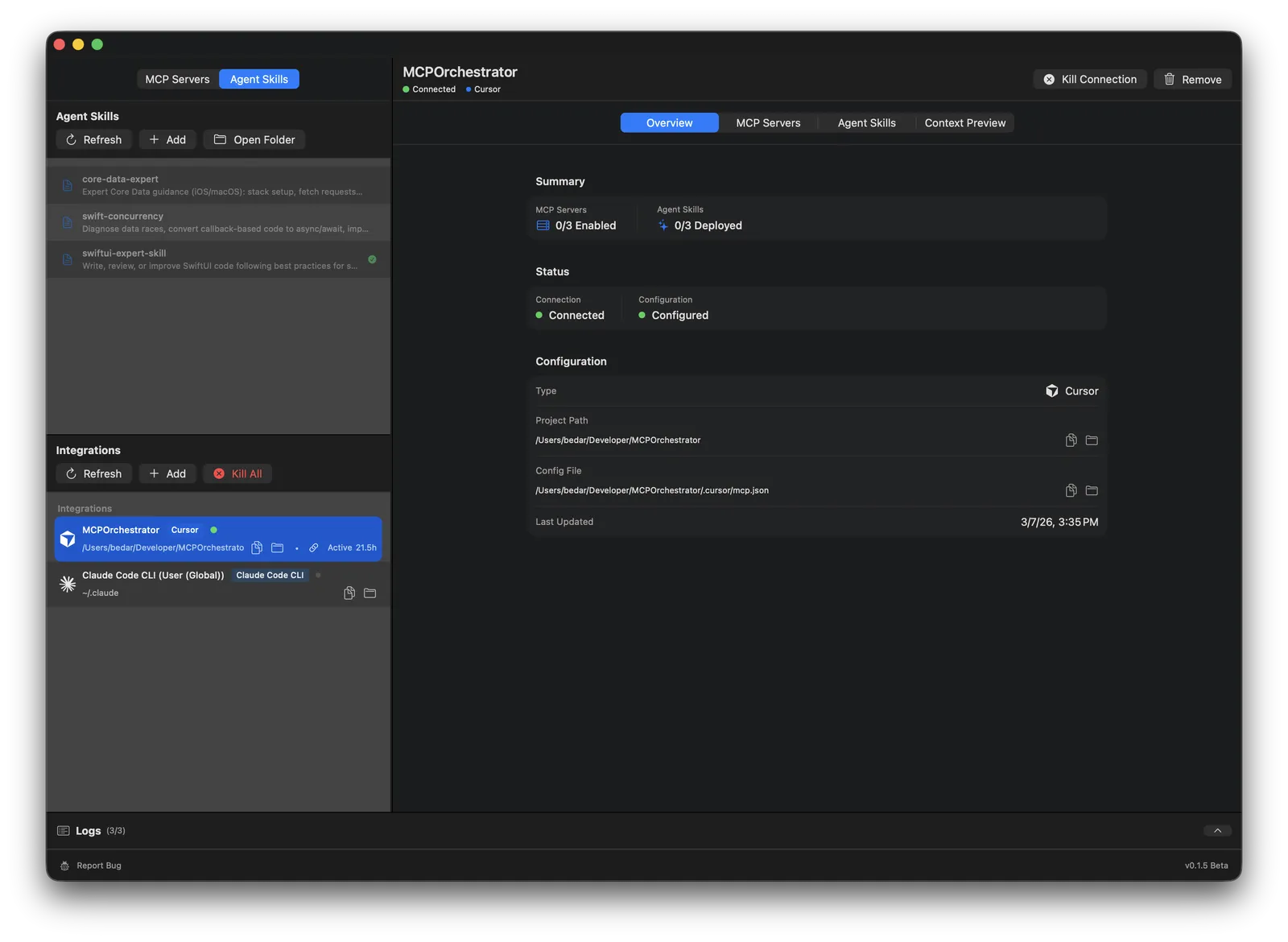
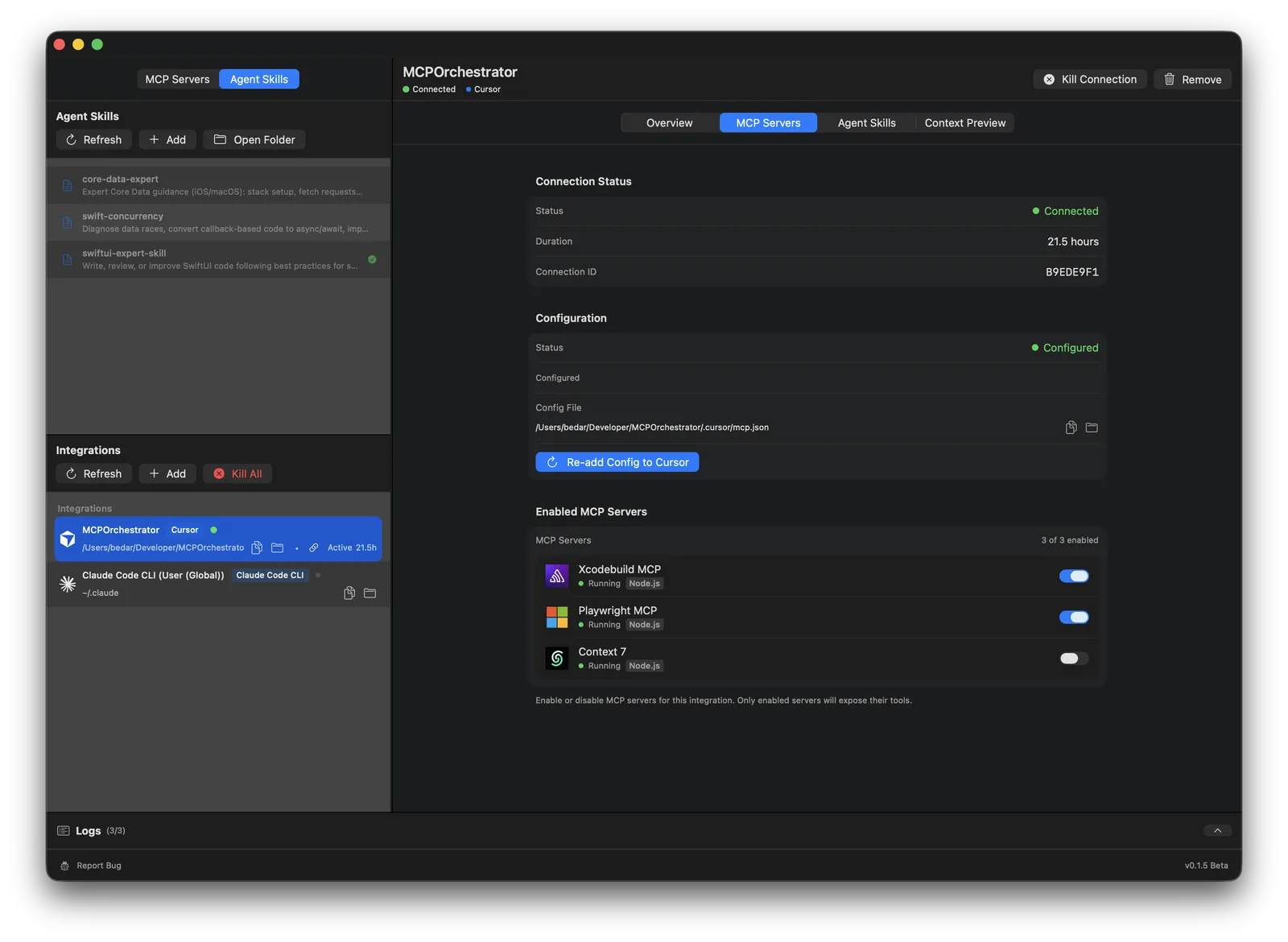
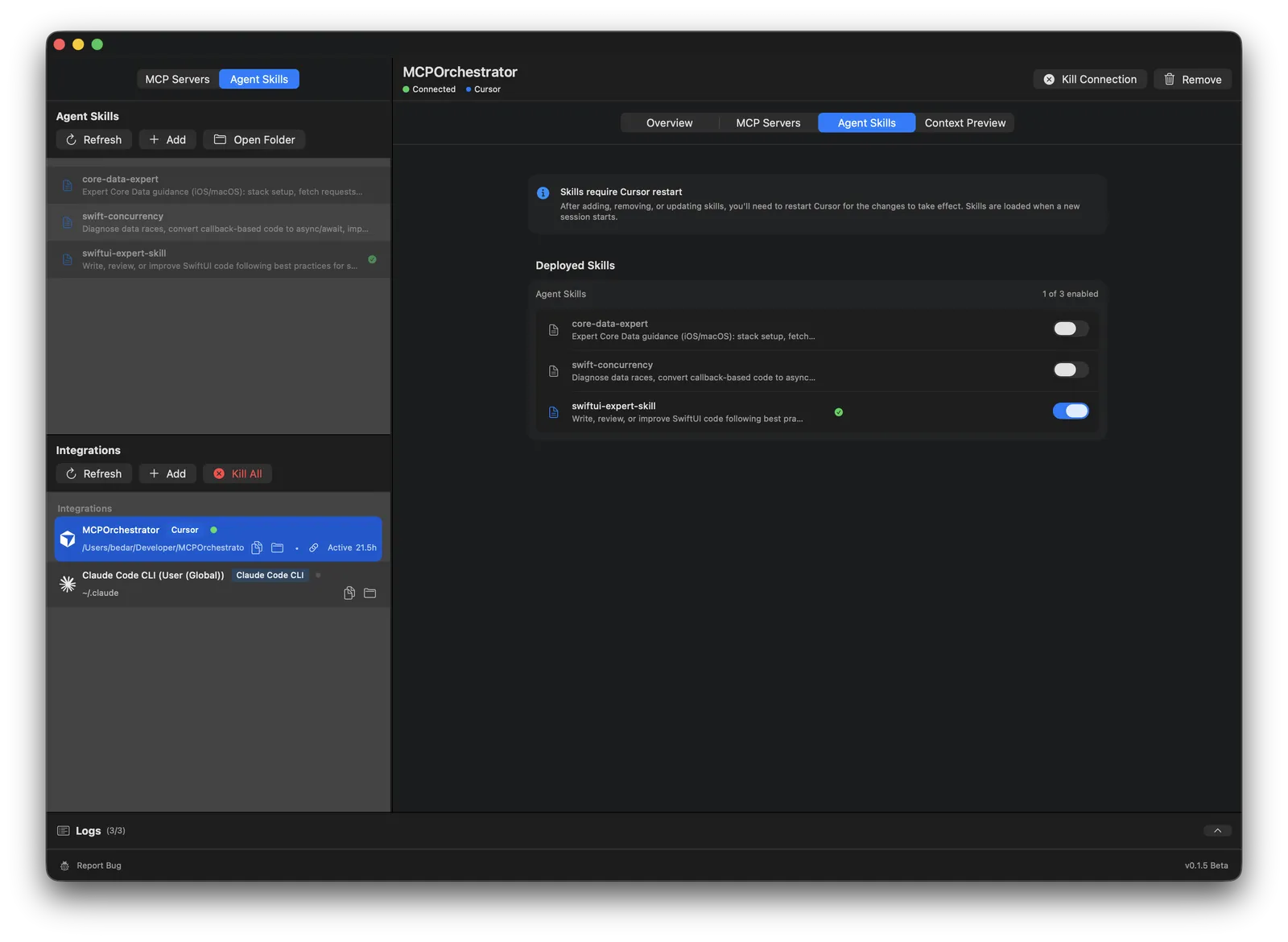
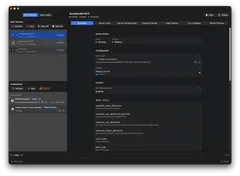
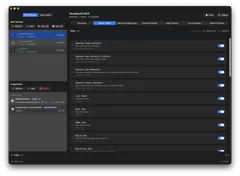
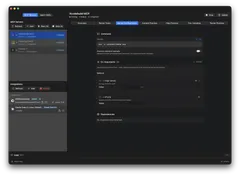
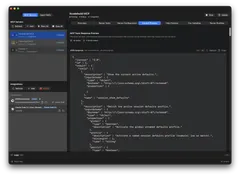
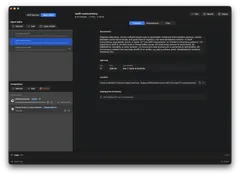
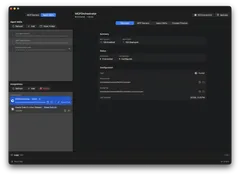
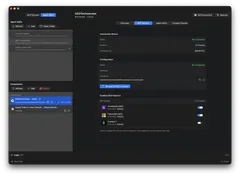
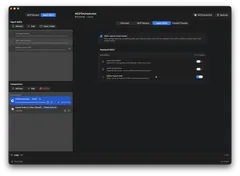
One central place to manage MCP servers and Agent Skills. Control what agents see, what tools they're exposed to, and the context they receive.
What it does
Single endpoint, all your tools
Instead of wiring up MCP servers separately for Cursor, Claude Desktop, Claude Code, and Codex, you point them all at MCP Orchestrator. It handles the rest.
- One config instead of many
- Different server sets per integration if you want
- No more duplicated setup across projects
Install servers without the terminal hassle
Add servers from npm, PyPI, GitHub, or local folders. The app handles Node and Python runtimes automatically. No global installs, no path headaches.
- No need for global Node or Python
- Runtimes managed and versioned for you
See and control what the model sees
Every MCP server dumps a bunch of tool descriptions into the agent's context. Some are great, some are way too long. This app lets you preview, edit, enable, or disable individual tools before the model ever sees them.
- Less noise, better tool selection
- Lower token usage
- Full context preview before anything goes live
Agent Skills
Deploy SKILL.md instruction files to Claude Code, Cursor, and Codex. Think of them as reusable playbooks that teach agents your workflows and conventions.
- Consistent agent behavior across tools
- One-click deployment and sync
- See token impact before activating
It just runs in the background
A background daemon starts at login and keeps your MCP servers running. Logs, health status, start/stop controls are all there without needing a terminal.
- Launch at login
- Centralized logs and diagnostics
- Auto-updates via Sparkle
Native macOS, not an Electron wrapper
Built in Swift and SwiftUI. Daemon-based architecture with proper IPC. It's a real Mac app that behaves like one.
- Lightweight and fast
- Stable Unix socket communication
- Clean separation between UI and server processes
Quickstart
Install
- Download the DMG from the button above.
- Open it and drag MCP Orchestrator into Applications.
- Launch the app. If macOS warns about an internet download, approve it in the usual dialog.
On first launch, the app connects to its background helper and may download Node.js or Python runtimes if needed. App data lives in ~/Library/Application Support/MCPOrchestrator/.
Add an integration
- Open the Integrations section.
- Click to add one, and choose Cursor, Claude Code CLI, or Claude Desktop.
- Pick a target project folder if needed, confirm the config path, and save.
Config files are written to standard locations: .cursor/mcp.json for Cursor, ~/.claude.json for Claude Code CLI, or claude/mcp.json for Claude Desktop.
Add a server
- Open the Servers section.
- Point it at an npm package, PyPI package, GitHub repo, or local folder.
- Review the detected command and runtime, save, and start it.
Check that it's working
- Go back to Integrations and confirm your integration shows as configured.
- Open your AI tool (Cursor, Claude, etc.) and let it reload its MCP config.
- Use the Logs view in MCP Orchestrator to confirm the connection and see available tools.
Recommended settings
- Turn on Launch at Login in Settings so the helper is always available.
- Enable Auto-start Servers on Launch if you want your servers running automatically.
- Review tool descriptions for any server that sends noisy or overly long metadata.
Troubleshooting
- Helper not connected? Quit and relaunch the app.
- Runtime download failed? Check your network and try again.
- Client not seeing the integration? Reopen the project and double check the config path in MCP Orchestrator.
Why I built this
Like a lot of developers right now, I've been in a constant state of wonder, exploration, and anxiety trying to keep up with how fast AI coding tools are evolving. I've mostly been using Cursor, largely because it's the easiest way to test a wide variety of models. One thing that became clear early on is the power of giving agents access to other tools and services directly, and MCP servers are the best way we have to do that right now. They let agents interface with remote platforms, look up information, access the browser, run build tools, and a lot more. They're not perfect, and who knows how long until something better comes along, but building up a set of relevant MCP servers quickly became an important part of my dev setup.
The problem (or the annoyance, really) was that every project needed its own process of downloading, building, configuring, and maintaining a growing list of servers. As a lifelong Mac user, I start to get unhappy if I have to do too much in the terminal. I got tired of cloning Node MCP repos, building them, and manually editing JSON config files. I wanted a simple GUI to install these things once and add them to any project.
That's how MCP Orchestrator started. A few days in, I found SwiftMCP, a library for building MCP servers in Swift, and the idea evolved. Instead of just helping install servers, what if the app acted as an intermediary? Install as many servers as you want, and use a GUI to control exactly which tools get exposed to the agent. It got even more interesting when I realized I could edit the tool descriptions and metadata that each server sends. Some of those descriptions are absurdly long. Now MCP Orchestrator lets you trim, edit, and optimize all of it. The agent only sees what you choose to expose.
Beta
This app is very much in beta. Things will break, features are still being added, and the whole thing is evolving quickly. If you run into issues, the app has a built-in bug reporter, or you can email me directly. I'd also love to hear suggestions or feature requests.
Loading...